Website Accessibility Basics Guideline
Written by Heather Lipe, Owner of Woodchuck Arts
Last updated: February 2026 to reflect current accessibility standards, enforcement trends, and testing tools.
Website accessibility means everyone can use your site, regardless of how they navigate the internet. The concept isn’t new, but standards have become clearer over time. Many business sites were built before these standards were widely enforced, so they may look fine but still have accessibility gaps. This guide explains what website accessibility is, why it matters now, and how to check if your site meets current standards.
What is website accessibility?
What are the most common website accessibility issues?
What is Website Accessibility?
In today’s digital world, your website is your front door to the public. Accessibility means that a user who is blind can “read” your site with a screen reader, a user with limited mobility can navigate using only a keyboard, and a user with a hearing impairment can access your videos through captions. It is about creating a “digital ramp” so that no one is locked out of the information or services you provide.
Beyond being the right thing to do, accessibility is simply good business. Improving your site’s accessibility creates a better experience for everyone; clear navigation, readable text, and well-structured content benefit every single visitor. Furthermore, search engines like Google act a lot like screen readers—they “read” your code to understand your content. This means that an accessible website is often an optimized website, helping you rank higher in search results.
If your website isn’t accessible, you’re excluding a significant portion of your audience. People with disabilities and older users have real spending power, and they will quickly leave a website they cannot use in favor of a competitor who has cleared the path for them.
Common Website Accessibility Issues We Find
Below are some of the common issues that show up again and again on otherwise well-designed websites:
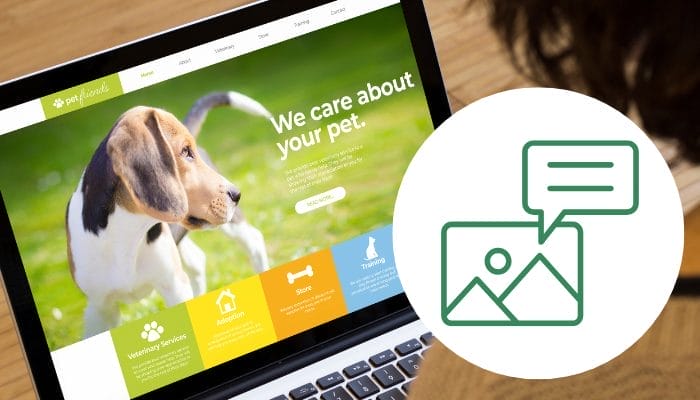
Missing Alt Text on Images
Search engines and screen readers share a common limitation: they cannot “see” your photos. Without Alt Text, a meaningful image is invisible to a blind user and a wasted opportunity for your SEO. By adding a short, descriptive “alternative” text to your images, you ensure that everyone can understand your content.
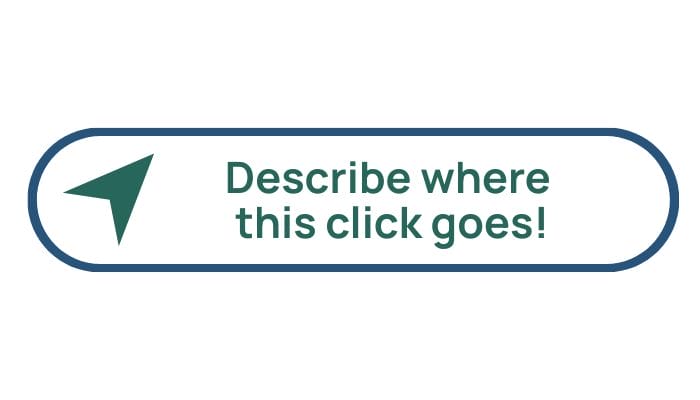
Non-Descriptive Link Text
Links that simply say “click here” or “read more” provide zero context for screen reader users and offer no value to search engines. For a visitor using assistive technology, a page full of “click here” links sounds like a confusing list of repetitive commands. By using descriptive text like “Download the 2026 pricing guide” or “View our web design packages,” you provide an immediate “map” of where the link leads. This doesn’t just improve accessibility; it also tells Google exactly what the destination page is about, giving your internal SEO a significant boost.
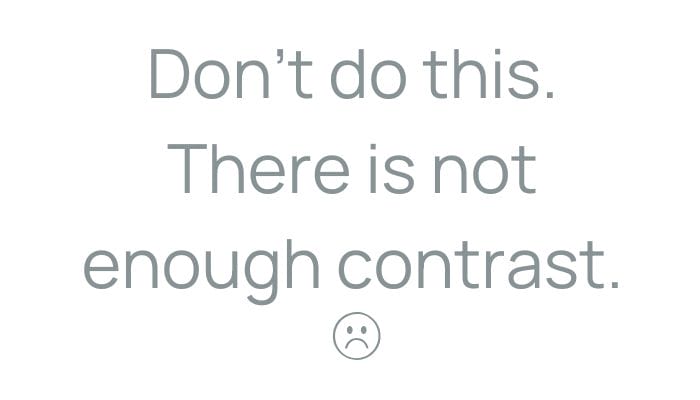
Poor Color Contrast
Light gray text on a white background might look minimalist or modern, but if your visitors can’t read your content, your design has failed. This is one of the most common barriers for users with low vision or age-related sight changes
Missing Form Labels
A contact form is often the most important part of your website, but it becomes a major barrier when it lacks clear labels. Relying on “placeholder text” (the gray text inside a box that disappears when you start typing) is a common mistake; it’s often invisible to screen readers and frustrating for users who forget what they were typing. By using permanent, clear labels like “Email Address” or “Phone Number,” you ensure that every visitor—including those with cognitive challenges or visual impairments—can complete their entry with confidence. Accessible forms don’t just meet a requirement; they remove the friction that stands between a visitor and a new lead.
Site Structure & Landmarks
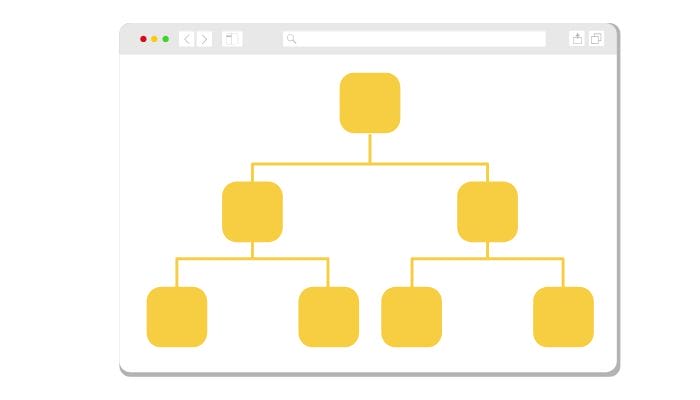
A screen reader user navigates a page by jumping between “landmarks” like the Header, Main Content, and Footer. Without a clear semantic structure, a website feels like a book without a Table of Contents. When we build a site with properly labeled regions, we provide a “map” that allows assistive technology to skip directly to the information the user needs. This clean, organized code doesn’t just help with accessibility; it makes your site faster, more stable, and much easier for Google to index. Building with landmarks ensures your “digital home” is as organized as it is beautiful.

Keyboard Navigation Problems
Is Website Accessibility Required by Law?
The short answer is yes. In the United States, digital accessibility is no longer a “best practice”—it is a legal mandate. Depending on your organization, you fall into one of three main categories:
Private Businesses (The ADA)
Under Title III of the Americans with Disabilities Act (ADA), websites are legally classified as “places of public accommodation.”
- The Standard: While the ADA doesn’t explicitly name a code, the DOJ and the courts treat WCAG 2.1 Level AA as the gold standard.
- The Risk: If your site isn’t accessible, you are vulnerable to private lawsuits. In recent years, thousands of businesses have been sued for “digital barriers” that prevent equal access to goods and services.
State & Local Governments (Title II)
A DOJ ruling recently finalized hard deadlines for all public entities (including public schools and universities).
- The Mandate: Websites and mobile apps must conform to WCAG 2.1 Level AA.
- The Deadlines:
- Large Entities (50,000+ residents): Must be compliant by April 24, 2026.
- Small Entities: Must be compliant by April 2027.
Federal Agencies & Contractors (Section 508)
If you receive federal funding or provide services to a federal agency, Section 508 applies.
- The Requirement: All Information and Communication Technology (ICT) must be accessible to both the public and employees. Failing to meet these standards can result in the loss of government contracts and federal funding.
How to Check Your Website Accessibility
Want to see how your website measures up? You don’t need to be a developer to get started. Several free tools can help identify common accessibility barriers in seconds, but for a full picture, you’ll need a combination of automated scans and manual testing.
Step 1: Automated Testing with Google Lighthouse
Google Lighthouse is built directly into the Google Chrome browser and provides a quick, data-driven audit of your site’s accessibility baseline.
How to run a Google Lighthouse audit:
- Open your website in Google Chrome.
- Right-click and select Inspect (or press F12).
- Click the Lighthouse tab in the panel.
- Select Accessibility and click Analyze page load.
Lighthouse flags issues such as missing alt text, insufficient color contrast, and missing form labels. It provides a score from 0–100.
What is an ideal Google Lighthouse accessibility score?
Aiming for a score of 90 or higher on both mobile and desktop is a practical target. Lighthouse scores range from 0 to 100:
- 90–100: Strong accessibility baseline
- 50–89: Some accessibility issues present
- 0–49: Significant accessibility issues
Important to know: A score of 100 does not guarantee full accessibility. Lighthouse identifies many common issues but cannot evaluate every aspect of real-world accessibility. Manual testing, such as navigating the site using only a keyboard, is still important.
Mobile vs. Desktop Scores
Lighthouse runs separate tests for mobile and desktop, and results often differ. Mobile testing is more demanding because:
- Buttons and links must be large enough for touch interaction
- Smaller screens make contrast and text readability more critical
- Touch navigation differs from mouse and keyboard use
Since many users primarily access websites on mobile devices, addressing mobile accessibility issues first is often the most effective approach.

The “100%” Myth
It is important to know that a score of 100 does not guarantee full accessibility. Automated tools are “binary”—they can tell if an image has an alt tag, but they can’t tell if that text actually describes the image accurately or usefully. Research suggests automated tools only catch about 40% to 50% of potential accessibility violations.
To be truly “in the clear” legally and ethically, you must move beyond the score to the Human Test.
Good Old-Fashioned Human Testing
Manual testing identifies the hurdles that a computer scan simply can’t see. Below are three things to test manually on each page.
The Keyboard Challenge
Put your mouse aside and try to navigate your entire site using only the Tab and Enter keys. If you can’t reach a button or get “stuck” in a menu, your site has a mobility barrier.
The Screen Reader Walkthrough
Use a free screen reader (like VoiceOver on Mac or NVDA on Windows) to listen to your site. Does the order of the content make sense, or is it a confusing jumble of links?
Logical Flow:
A human test ensures that your site’s “semantic structure” actually helps a user find what they need quickly, rather than just checking a box for a search engine.
A Lighthouse score of 100 is like passing the written portion of a driving test; it proves you know the rules, but it doesn’t prove you can actually drive the car. Use automated tools for the baseline, but use human testing for the finish line.
Other Helpful Accessibility Testing Tools
Below are a few additional website accessibility testing tools available in addition to Google Lighthouse:
- WAVE (WebAIM): Visual overlays show where accessibility issues appear on the page
- axe DevTools: Browser extension that flags detailed accessibility violations and explains fixes
- Accessibility Insights: Microsoft’s tool combining automated scans with guided WCAG testing
If Your Site Needs Help
You don’t need a complete website overhaul to improve accessibility. Fixing color contrast, adding alt text, or updating form labels can immediately help users navigate your site more easily, and reduce your legal risk. Whether you’re building a new site or maintaining an existing one, we can help identify gaps and implement practical solutions that make your site more usable and inclusive.

Home
Services
Email Marketing
Graphic Design
Logos & Branding
Search Optimization
Website Development
Website Hosting
Send us a Message